FDD Faults on Mobile App
FDD Faults on Mobile App
FDD Faults on Mobile
FDD Faults on Mobile allows building operators, technicians, and facility teams to investigate, monitor, and manage recurring operational inefficiencies directly from the KODE OS Mobile App.
Unlike Events, which are intended for urgent issues requiring immediate attention, Faults are designed to track long-term equipment performance deviations and operational abnormalities that impact building efficiency over time.
The mobile experience enables technicians to:
Access Faults while on site
Filter issues by Area or Assignment
Update Fault Statuses
Review Activity History
Analyze point trends directly from Mobile devices
Accessing FDD Faults
To access FDD Faults within the KODE OS Mobile App:
Open the Main App Tray
Navigate to the Building level
Select FDD Faults
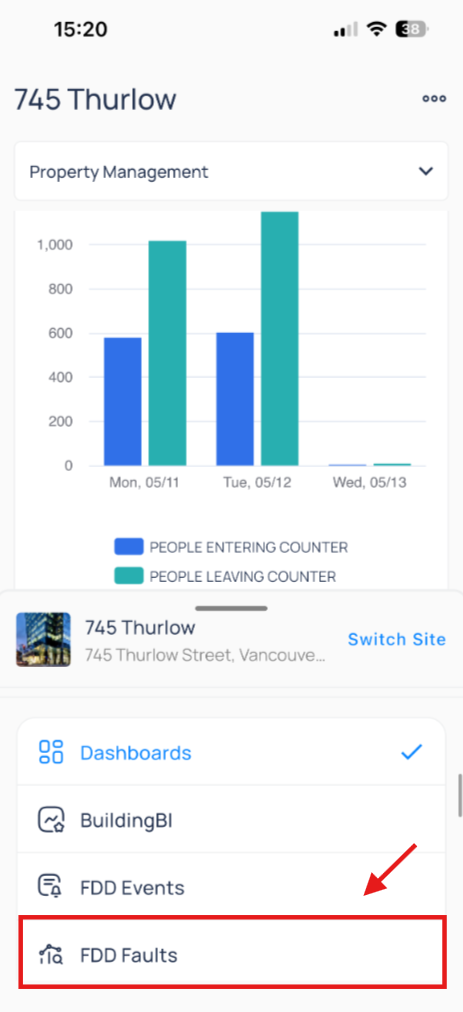
Faults automatically synchronize within the mobile experience and do not require additional mobile setup.
Fault Views
The FDD Faults mobile experience includes 3 primary organizational views that help users investigate and organize operational issues more efficiently.
Fault View
Displays all active and historical faults for the selected building.
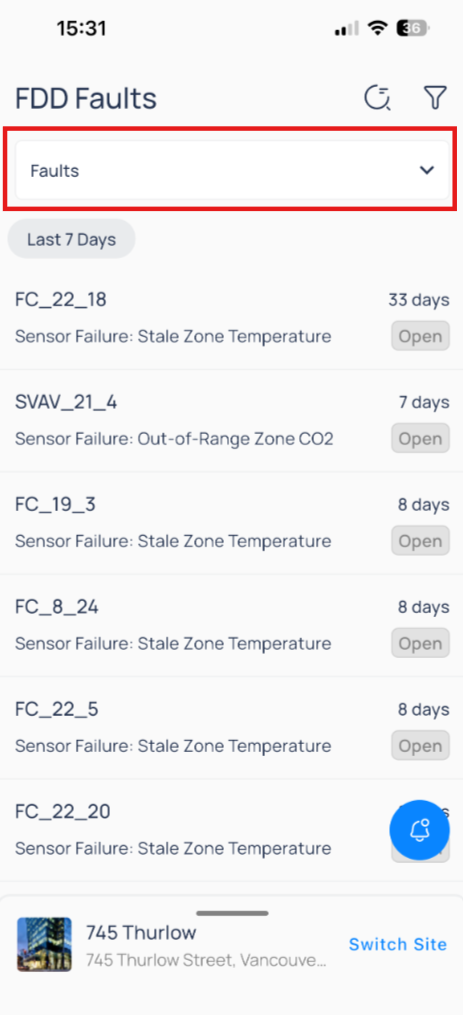
This view allows users to:
Review current fault statuses
Monitor ongoing issues
Open detailed diagnostics
Update fault statuses
Device View
Groups faults by associated equipment or device.
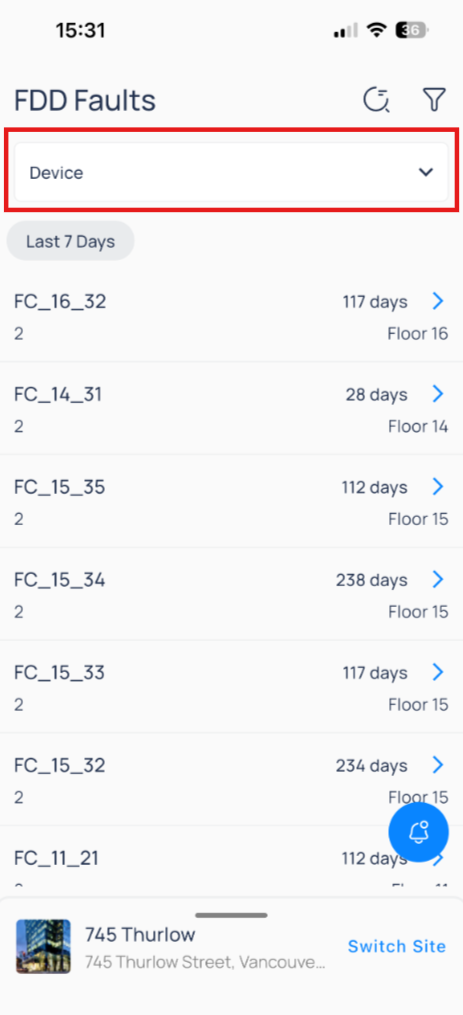
This helps technicians quickly identify:
Devices with recurring issues
Equipment generating multiple faults
Fault concentration across systems
Routine View
Groups faults by the diagnostic routine that generated them.
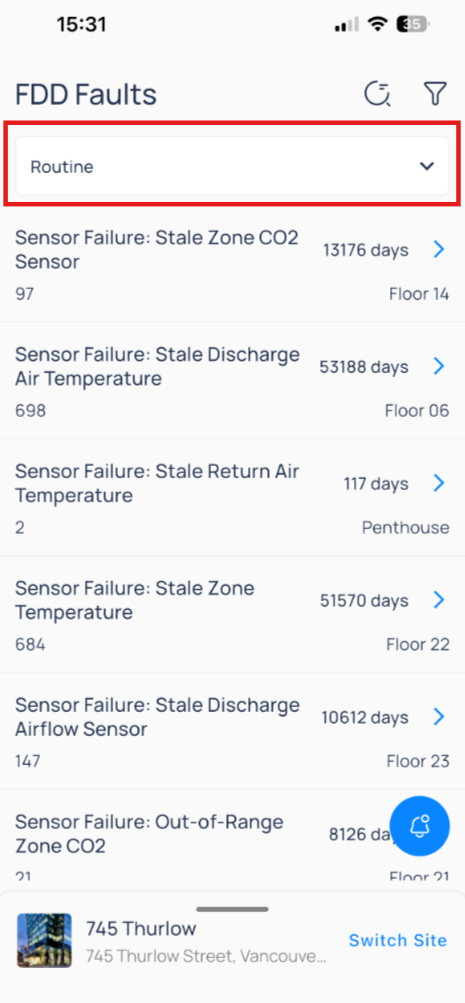
This view helps users analyze:
Frequently triggered routines
Repetitive operational conditions
Common diagnostic patterns across devices
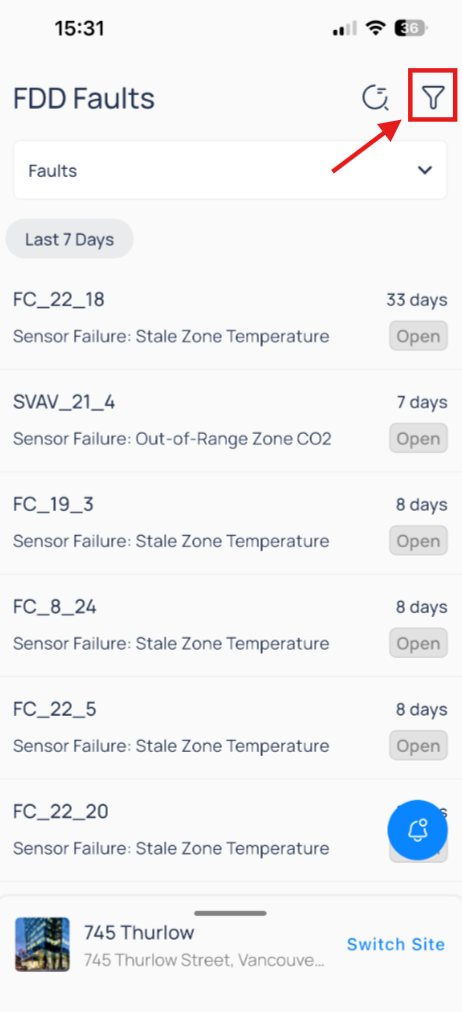
Filtering Faults
The mobile experience supports filtering to help users narrow down visible faults based on operational responsibility or physical location.
Available filters include:
Area
Watcher
Status
Labels
Date
Device Types
Routines
Domains

Fault Status Management
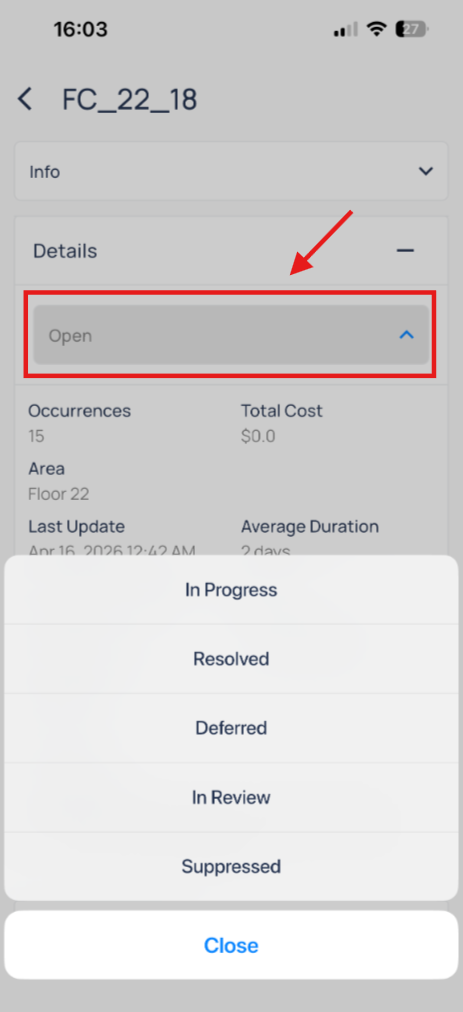
Fault statuses are used to track investigation progress and operational workflows.
Supported statuses include:
Open
In Progress
Resolved
Deferred
In Review
Suppressed
Statuses can be updated directly from the mobile application.
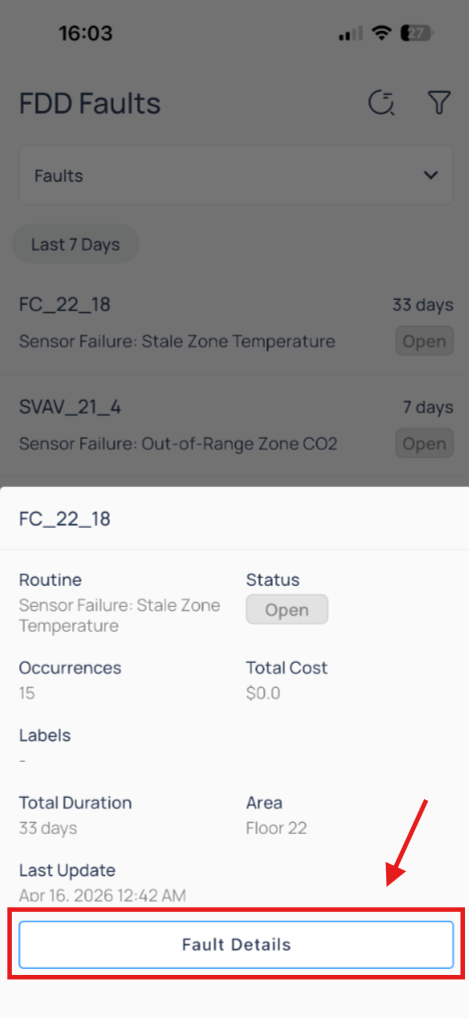
Fault Preview Window
Selecting a fault opens a preview window that provides a quick, structured overview of the fault for fast triage without needing to open the full Fault Details page.
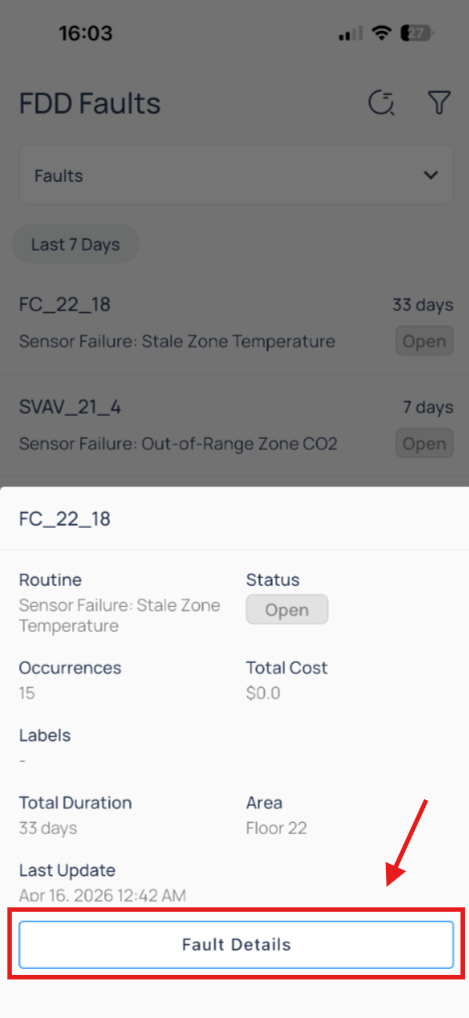
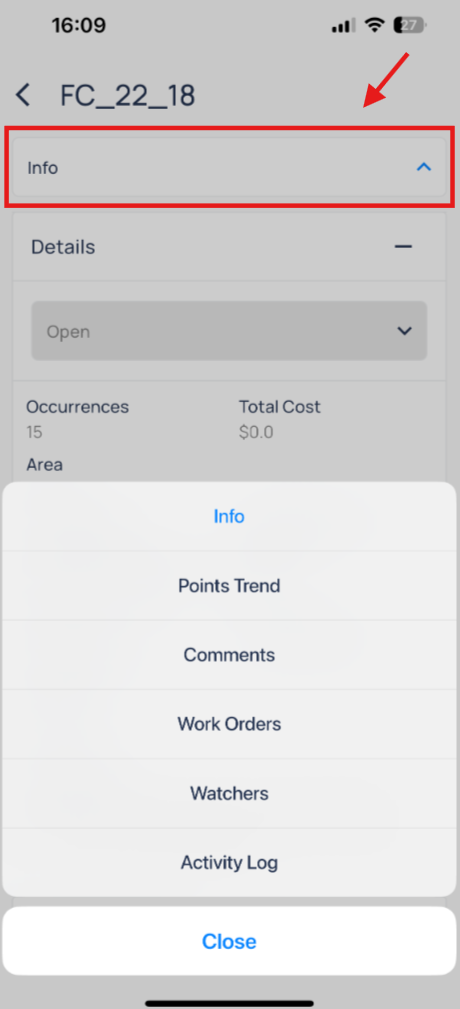
The preview window includes the following sections:
Info
High-level summary of the fault
Key fault attributes (name, status, affected equipment)
Context of where and what is impacted
Quick identification of severity and scope
Points Trend
Shows recent behavior of the system or equipment
Helps identify spikes, drops, or abnormal patterns
Used to quickly validate fault conditions
Displays the most recent discussion on the fault
Supports quick collaboration between users
Helps maintain communication during active investigation
Work Orders
Lists linked maintenance or service work orders
Shows if corrective action is already in progress
Connects operational faults with maintenance activity
Helps avoid duplicate work or missed follow-ups
Watchers
Displays users assigned to monitor the fault
Shows who is responsible for tracking progress
Ensures accountability and visibility
Supports coordination between field and operations teams
Activity Log
Chronological record of all fault actions
Tracks system and user updates over time
Provides full audit trail of fault lifecycle
Fault Preview Window
The following updates are reflected automatically:
Status changes
Watcher assignments
No additional mobile deployment or configuration is required.
Troubleshooting
Faults Not Appearing
Verify the following:
FDD is enabled for the environment
The mobile user has the required permissions
The mobile application is updated to the latest version
Excessive Fault Triggering
If faults trigger more frequently than expected:
Verify routine logic
Confirm selected parameters
Adjust evaluation conditions if necessary
Faults Not Triggering
If expected faults are not appearing:
Verify routine configuration
Confirm device data availability
Validate trigger conditions and thresholds
Ensure the routine is enabled
Frequently Asked Questions
How can assigned faults be filtered? - Use the Watcher filter within the filter panel to display faults assigned to a specific user.
Can point trends be analyzed directly from mobile? - Yes. The Fault Details page includes point trend visualization and multi-point comparison functionality.