Multi-Factor Authentication (MFA) Setup

Multi-Factor Authentication (MFA) Setup

Multi-Factor Authentication (MFA) Setup

Multi-Factor Authentication adds an extra layer of security to your KODE OS account by requiring a second verification step in addition to your password. Even if someone knows your password, they cannot access your account without this second factor.

KODE OS supports 2 methods: Authenticator App and SMS.

Authenticator App

The Authenticator App method generates time-based one-time codes using a mobile app such as Google Authenticator, Microsoft Authenticator, or Authy. These codes refresh every 30 seconds and are used during login to verify your identity.

This method is highly secure and does not rely on mobile network availability.

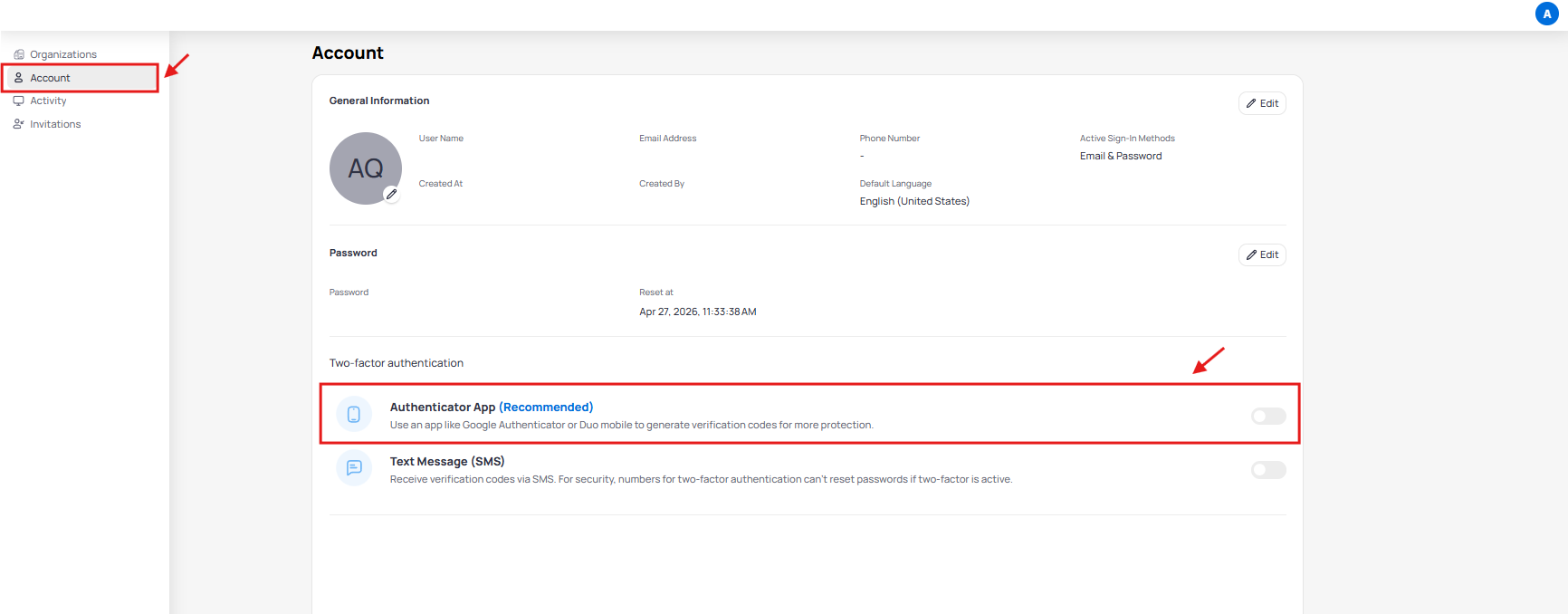
  1. Go to Manage Account from your profile
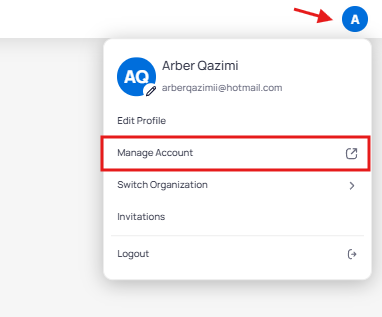

  1. Select Authenticator App under 2FA


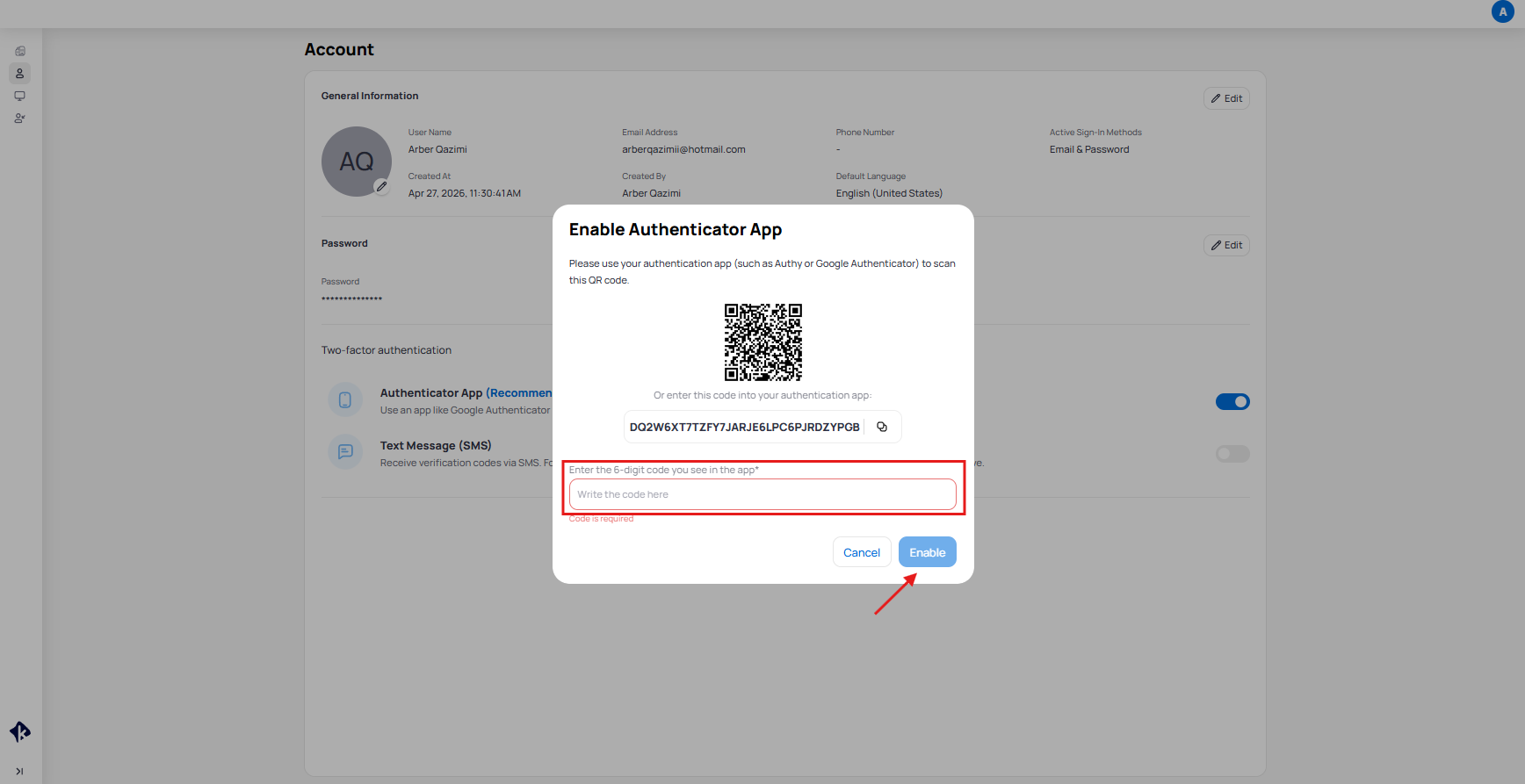
  1. Open an authenticator app on your phone (Google Authenticator, Microsoft Authenticator, Authy, etc.)

  2. Scan the QR code or enter the setup key manually

  3. Enter the 6-digit code shown in the app

  4. Click Enable


Once enabled, you will use a new code from the app each time you log in.


SMS Authentication

SMS Authentication sends a one-time verification code directly to your registered mobile number each time you log in. You enter this code after your password to complete the login process.

This method is simple and convenient, but depends on mobile network access to receive messages.

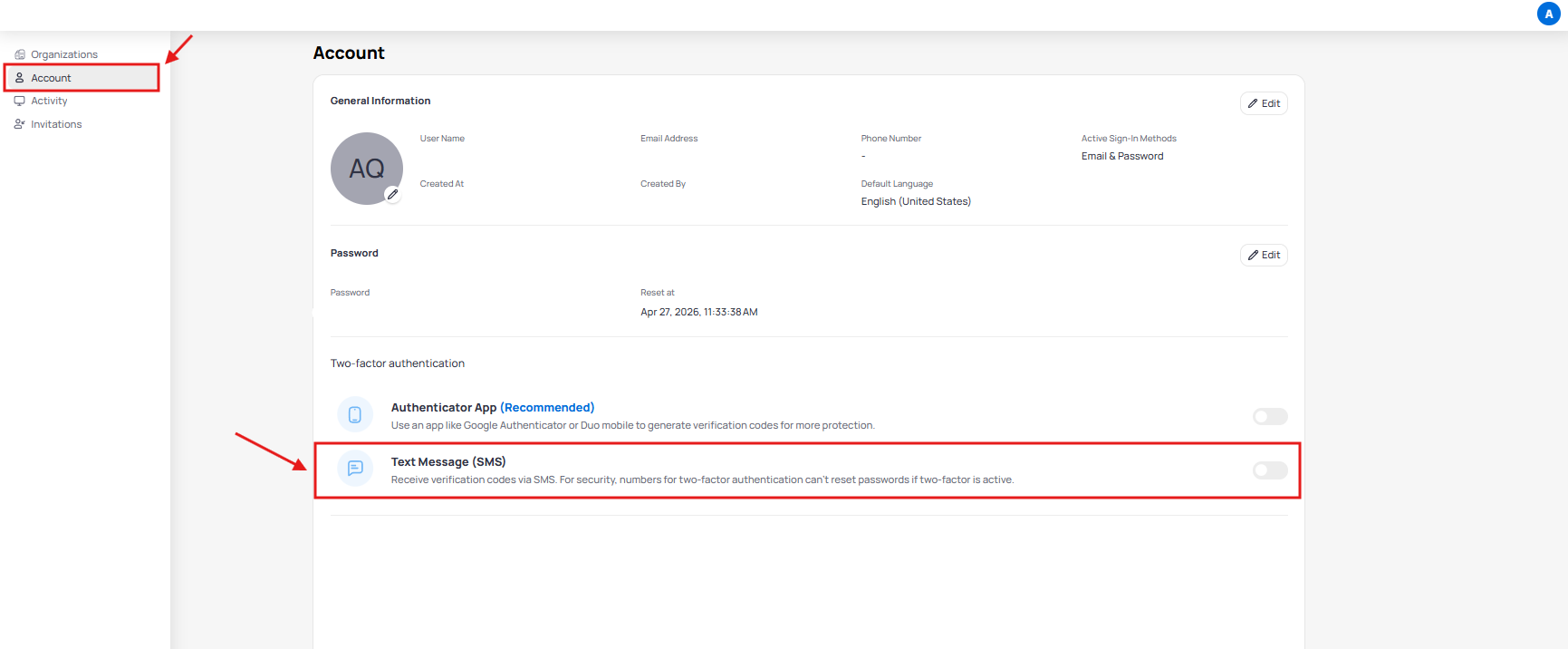
  1. Go to Manage Account from your profile
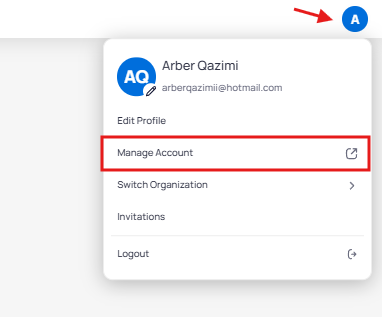

  1. Select Text Message (SMS) under 2FA


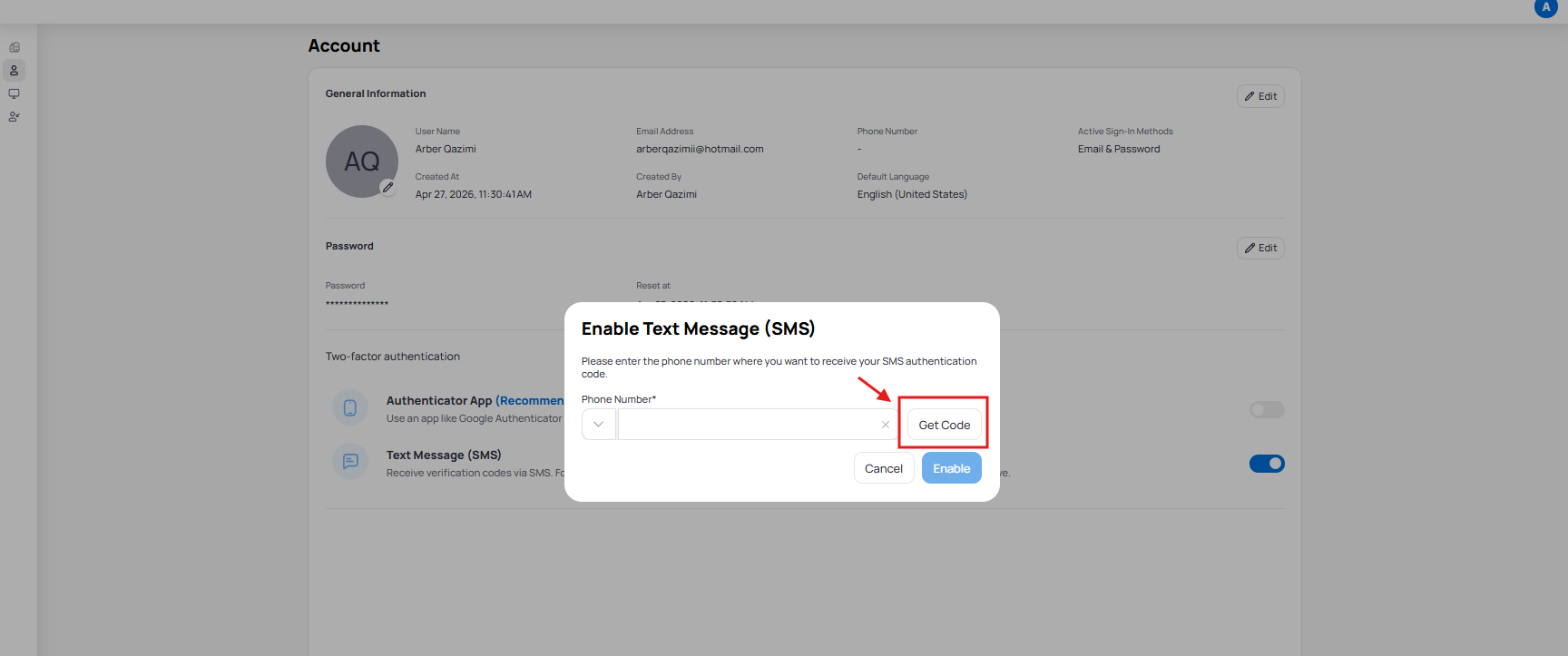
  1. Enter your country code and phone number

  2. Click Get Code


  1. Enter the 6-digit code received via SMS

  2. Click Enable

    • Related Articles

    • Service Account Setup

      This guide explains how to create and manage a Service Account in Launchpad, including setting permissions, generating access keys, configuring expiration settings, and handling key and account lifecycle management. Accessing the Service Account ...
    • Authentication & Security

      The Authentication & Security panel is available via Security Settings. There are three tabs: MFA, Password, and Timeout Settings. Multifactor Authentication (MFA) Upon your initial sign in to an account using a new device or application, the MFA ...
    • Navigate Launchpad as a User

      Launchpad is a core component of KODE OS. Any instance or user can be added, modified, or deactivated in just a few seconds. Serving as the central hub for all your KODE products, Launchpad allows you to access your applications quickly and ...
    • Activate your account

      In order to begin using KODE OS you need to set up and activate your account. To activate your account, Once your account is created you will receive an email with instructions to set up your account. You will need to set up your password in order to ...
    • Trusted Organizations

      Trusted Organizations are instances with which your organization has established trusted settings. This page is available via Security Settings. There are two tabs. Outbound: List of organizations that can invite your users as a channel. Includes the ...